
How to route a dynamic QR code by country or device
ON THIS PAGE

Use one dynamic QR code when the printed material is the same but the useful destination changes by country or device. In Graklink, set a useful default, add one condition per rule, order the rules by priority, preview the possible routes, then save and test the actual QR code.
Suppose your team hands out app-download cards at a trade show. You have room for one QR code. An iPhone visitor needs the App Store listing, an Android visitor needs the Play Store listing, and someone opening the QR code on a laptop still needs a page that explains the app. Device rules handle the first two visits. The app page is the default, with store buttons for anyone who needs to choose.
The same method can send a product-package visitor to a country-specific storefront or help page. In that case, use country rules and a global page as the default. These are two separate setups, not a promise that Graklink can require both a particular country and a particular device in one rule.
Write down the destinations before opening Rules
For an app-download QR code, make this small map:
| Visitor | Destination |
|---|---|
| iOS | App Store listing |
| Android | Play Store listing |
| Other or unknown device | Mobile-friendly app page with both store choices |
For a package used in several markets, the map might be United States → US storefront, United Kingdom → UK storefront, and any other or unknown country → global product page. Make sure each destination works for someone who arrives directly from a QR scan, without relying on a prior session or login. The default should remain useful even if a rule cannot identify the visitor.
Choose a dynamic QR code rather than a static QR code for Graklink-managed routing. A Graklink dynamic QR code includes country and device rules, destination editing and basic scan counts. Routing a scan alone does not establish an app install or a sale.
Set the default and add ordered rules
- Open the dynamic QR code in your Graklink dashboard and select Rules. Confirm you are editing the intended QR code before changing its destination.
- Set Default destination to the page for everyone who does not match a rule. For the app example, use the app page with clear iOS and Android store links. Leave Split remaining traffic between two destinations off for this setup; when enabled, it sends unmatched scans to the split destinations instead of the default.
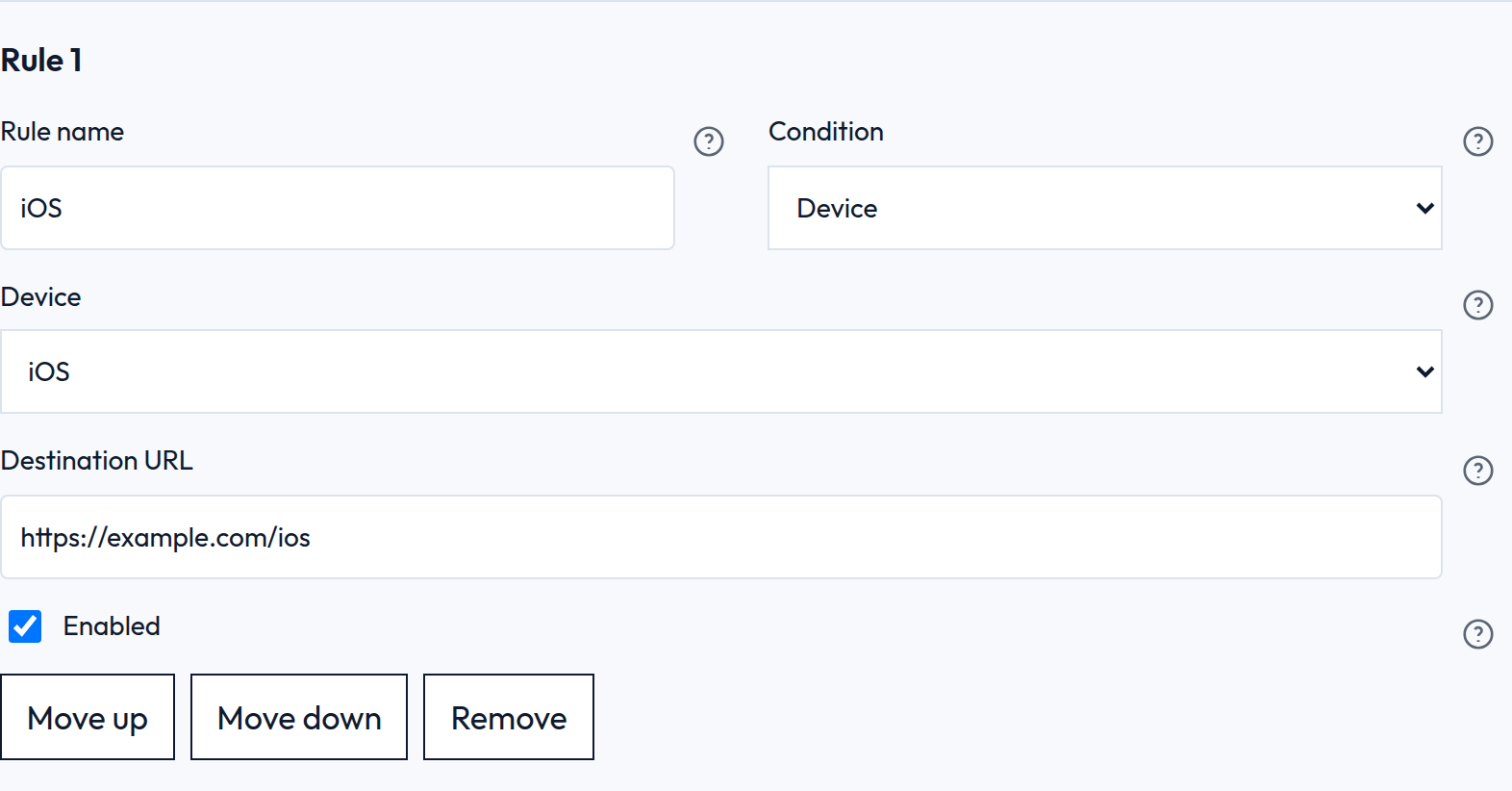
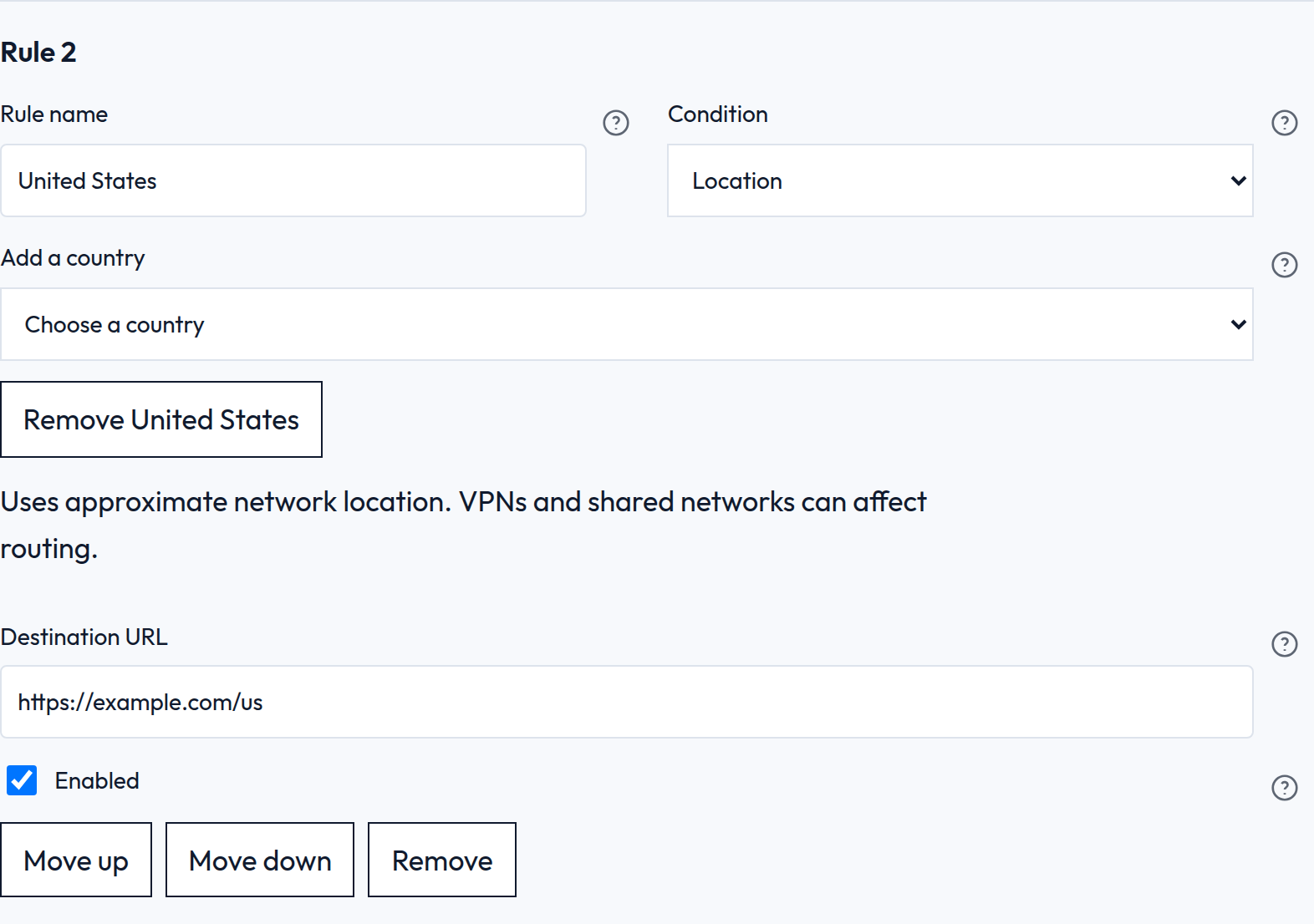
- Select Add destination rule. Give the rule a name you will recognize later. Under Condition, choose Device for iOS or Android, or Location for a country. Enter the matching choice and its destination URL. Add a second rule for the other device or country if needed.
- Put the rules in priority order. Enabled rules run from top to bottom, and the first match wins. Move a rule up or down if its priority needs to change. For example, with an iOS rule above a United States rule, a US visitor on an iPhone takes the iOS destination. A US visitor on a device that does not match iOS can take the United States destination.
- Use Preview destination to check the device and country cases, including unknown values. The preview shows the selected rule and URL; it is a simulation, not a scan. Then save the routing configuration and confirm the saved state before printing or sharing the QR code.
Keep country and device examples separate when you can. If you mix them on one QR code, decide deliberately which condition gets priority. Two separate rules do not form an “and” condition.
These are captures from Graklink’s staging Rules editor with example destinations. The iOS rule is first; the United States rule is second. The example QR code and destinations were removed after the check. Tap either image to open it at full size.
Test the saved QR code, including the default
Preview catches rule-order mistakes. A real open checks the saved QR code and the destination page too. Use this matrix before a print run:
| Check | Preview | Real-world check |
|---|---|---|
| iOS rule | Choose iOS and set the country too; expect the iOS URL if that rule comes first | Scan on an iPhone and confirm the intended listing opens |
| Android rule | Choose Android and set the country too; expect the Android URL if that rule comes first | Scan on an Android phone and confirm the intended listing opens |
| Country rule | Choose a device that matches no earlier rule and each configured country; expect its page | Open from a connection in that country on a device that matches no earlier rule, when available |
| Default | Choose both a device and country that match no enabled rule; expect the default URL | Open from a device and connection that match no enabled rule, then check the page |
Use only the rows that apply to your setup. The default row assumes traffic splitting is off. With mixed country and device rules, set both preview selectors; changing just one can leave an earlier rule matching the other. A desktop open is not a default test if its country matches a rule. If you cannot reach an unmatched country for a real default test, mark that check as preview-only until you can. Test from a signed-out browser if the destination should be public. A preview of another country checks the rule logic, but it does not prove what a real network in that country will report. If a saved change has not reached a redirect yet, check the saved configuration and retry the QR code after the update has had time to propagate. Test the finished printed sample as well; print and scan troubleshooting covers physical scan problems.
In a controlled Graklink staging check with an iOS rule above a United States rule, we recorded these results. The example destinations were test pages, not app stores:
| Condition | Expected destination | Test result |
|---|---|---|
| iPhone user agent at the US edge | iOS test page | Editor preview selected iOS; after saving, the staging QR redirect returned the iOS URL. |
| Desktop user agent at the US edge | US test page | Editor preview selected US; after saving, the staging QR redirect returned the US URL. |
| Android or an unmatched country | Relevant rule or default | Not exercised in that check; verify with your own device and network. |
Know what the conditions can and cannot tell you
Graklink’s Location rule uses approximate network location. A VPN or shared network can change the country detected for a visitor. It is not GPS, a home address, or a language preference. A country-specific page must contain the content you want that visitor to see; the rule does not translate it.
The device rule recognizes iOS and Android when those signals are available. Other or unknown devices continue to a later matching rule, the traffic split if enabled, or the default. A store destination may still hand off differently across browsers and apps, so confirm the final experience on the devices your visitors use.
If visitors should choose their own region or store, a free static QR code can open a mobile page with clear buttons. That page needs maintaining, but it avoids automatic country or device decisions. Use conditional routing when those automatic destinations and later editing are useful; use the choice page when visitor control matters more.

Common questions
Can one Graklink QR code route by country and device at the same time?
You can add country and device rules to one dynamic QR code. Each rule tests one condition, and the first matching rule wins. The current editor does not offer a combined country-and-device condition.
What happens when a visitor does not match a rule?
With traffic splitting off, the QR code opens its default destination. If a split is enabled, unmatched scans go to one of the two split destinations instead. Use a default page that still helps visitors whose device or country is unknown.
Does country routing know where a person lives?
No. Country is inferred from the connecting network. VPNs and shared networks can affect the result, and it does not reveal a person's residence or language preference.
Sources and verification dates
Source links, check dates and available archived copies are listed below.
- Brij international routing examples
QR codes on product packaging automatically directed customers to country-specific landing pages
Checked October 13, 2026.
Vendor-reported Gozney example. It does not establish Graklink use or independently verified outcomes.
- QRSurge Tutai app routing case study
one dynamic QR link automatically sends users to the correct app store based on their device type
Checked October 13, 2026.
Vendor-reported case study. Its reported results were not independently verified and are not used here.