
Give each product a clear path to its registration form
ON THIS PAGE
A buyer has the product and registration insert in hand, but a generic company page leaves them searching for the right model and form.
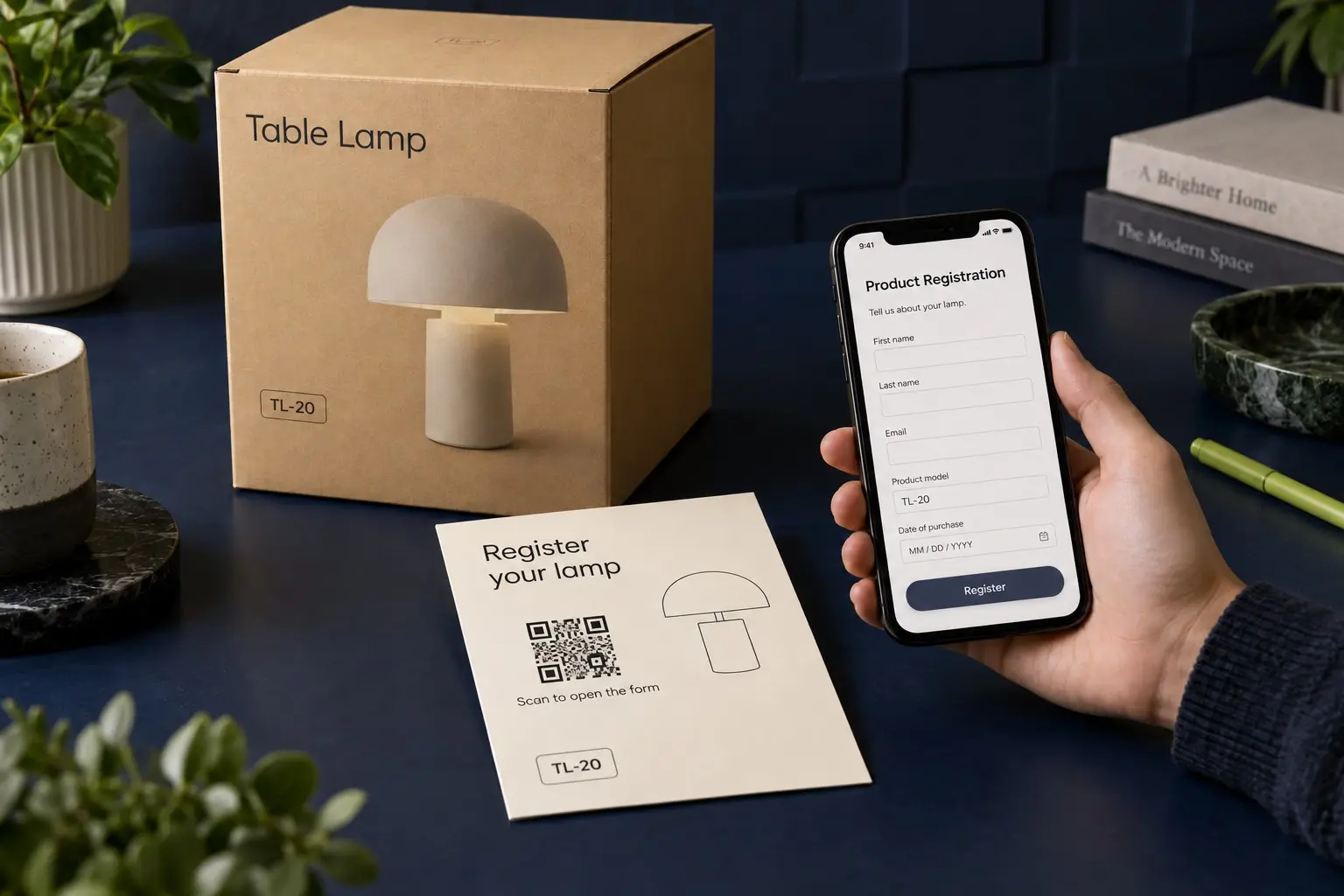
A buyer opens a new product and finds a card marked “Register your product.” The QR code on the card scans, but it opens your general website. Now the buyer has to find the product, choose a model and work out which form to use.
You can remove that search. Point the printed QR code to the registration entry for the product in the box, then test the full path on a phone before you print the batch. The form and the registration record still belong in your existing system.
Start with the product, not the QR code
Write down the model name exactly as it appears on the box and on the product. Then open your current registration page as a buyer would. Does it ask for a model number? Can you link directly to that model’s entry? If the form serves several models, does it let the buyer identify the right one without guessing?
For example, a maker selling two similar table lamps could give each model its own entry page. If both lamps use the same form, the first screen could instead show the model names and pictures clearly. In either case, the label should say what the scan will open: “Register model TL-20,” for example, if TL-20 is the identifier printed on that product.
Keep the product name, model identifier, printed prompt, QR destination and form label together in a simple inventory. If a form or product name changes, that record tells you which printed materials to retest. Include a person responsible for the destination. A label that still scans can lead to the wrong registration entry.
A real manufacturer example shows the narrow job. Page 1 of the Homedics Relaxation LightScape Fountain manual prints a registration QR code. We decoded that printed mark and found that it opens a dedicated Homedics registration application. We did not complete its form, confirm whether it fills in the model, or establish any warranty effect. The example shows a direct entry point, not a verified finished registration.
Give buyers a way in without scanning
Print a readable web address beside the QR code. Use an address that leads to the same registration entry or to a clear product selector. A buyer might be reading the insert on the same phone they would use to register, so typing an address may be easier than finding another device to scan the page.
Put the prompt where the buyer will see it after identifying the product. An insert or a label on an accessible part of the packaging may work. Print a sample at its intended size and scan that sample in ordinary lighting. Check the URL shown on the phone before opening it. Then type the fallback address and compare where both routes land.
The printed promise and the first screen should agree. If the card says “Register model TL-20,” the page should show that model or a clear way to select it. Do not make the buyer hunt through your homepage. If account creation is required, say so in the printed or first-screen instructions so the next step is clear.
Test the registration, not only the scan
Use a phone browser signed out of your company accounts. Start with the actual printed sample. Confirm that the QR code opens the intended page, that the readable address works, and that the model shown in the form matches the product. Check the same route on a mobile connection if you can.
Then test completion through the registration system with data your team is authorized to use. Look for the buyer-facing confirmation and the corresponding record in that system. If the system sends a receipt, check its wording and whether it identifies the right product. Remove or label the test record according to your normal process. Do not submit made-up customer information to a live manufacturer form merely to test someone else’s service.
A QR scan proves that someone opened the route. It cannot tell you whether they submitted the form. Even a visit to the registration page is only a visit. Use the registration system’s records to count completed registrations and investigate failed submissions. Review the consent text and any warranty language with the people responsible for those terms. Do not promise a warranty effect you have not established.
Before approving the print run, give the sample to someone unfamiliar with the setup. Ask them to open the form and identify the model without hints. If they hesitate at the model choice or cannot finish the authorized test, fix the page or prompt before changing the QR design.
Choose a QR code you can maintain
If you control a stable registration address, a free static QR code may be enough. You can change the content at that address without changing the QR code. Your manufacturer or registration platform may already supply an appropriate QR route; Samsung, for example, documents QR registration for specified products in its own account workflow. Use that native route when it handles your buyer’s job.
If you may move to another form provider or change the destination address after printing, a dynamic QR code gives you that option. A Graklink dynamic QR code includes destination editing and basic QR scan counts. It does not collect registrations or decide warranty status. The form system remains your source for completed registrations.
For a product line with separate registration entries, you may need several managed QR codes. Print 5,000 copies of one model’s QR code and it is still one QR code. Create separate QR codes only when model routing or separate activity counts are useful. The buyer should still arrive at the correct form, regardless of how you organize the QR codes.
If your form is a Google Form, the Google Forms guide covers publishing the responder link and signed-out access. The product-instructions guide deals with assembly help and product revisions. Registration is complete when your registration system confirms an authorized form submission.
Choose one model, check its current registration entry and make a production-size sample. The print batch is ready only when someone outside the setup team can reach the right form through the QR code or readable address and your team can verify an authorized test registration in the destination system.

Common questions
Can a QR code register a product by itself?
No. A QR code opens a destination. The manufacturer's form or registration system collects and confirms the registration. A QR scan is not a completed registration.
Do I need a dynamic QR code for registration?
A free static QR code works when your registration URL is stable. A dynamic QR code lets you change the destination address after printing, which can help if you change form providers or move the registration page.
Should every product model have a separate QR code?
Give different models separate QR codes when they need different registration destinations or when model-specific QR activity matters. If one page reliably identifies the product, a shared QR code may be enough. Printing many copies of one QR code does not create more QR codes.
Sources and verification dates
Source links, check dates and available archived copies are listed below.
- Homedics Relaxation LightScape Fountain instructions and warranty, models WFL-101/102/103
Register your product
Checked October 5, 2026.
Page 1 includes a registration QR that decodes to a dedicated Homedics registration application address.
Original manufacturer PDF retained in the editorial run; no public archival copy established. The printed QR was decoded, but form completion and warranty activation were not tested.
- Samsung US product registration
Scan QR code
Checked October 5, 2026.
Samsung describes QR registration for specified appliances and monitors.
Manufacturer documentation is an account and device workflow, not proof that a generic external form will behave the same way.
Make your QR code in a minute
$7.99 once. Unlimited scans. 30-day money-back guarantee.