
QR codes for appointment booking: from printed sign to confirmation
ON THIS PAGE
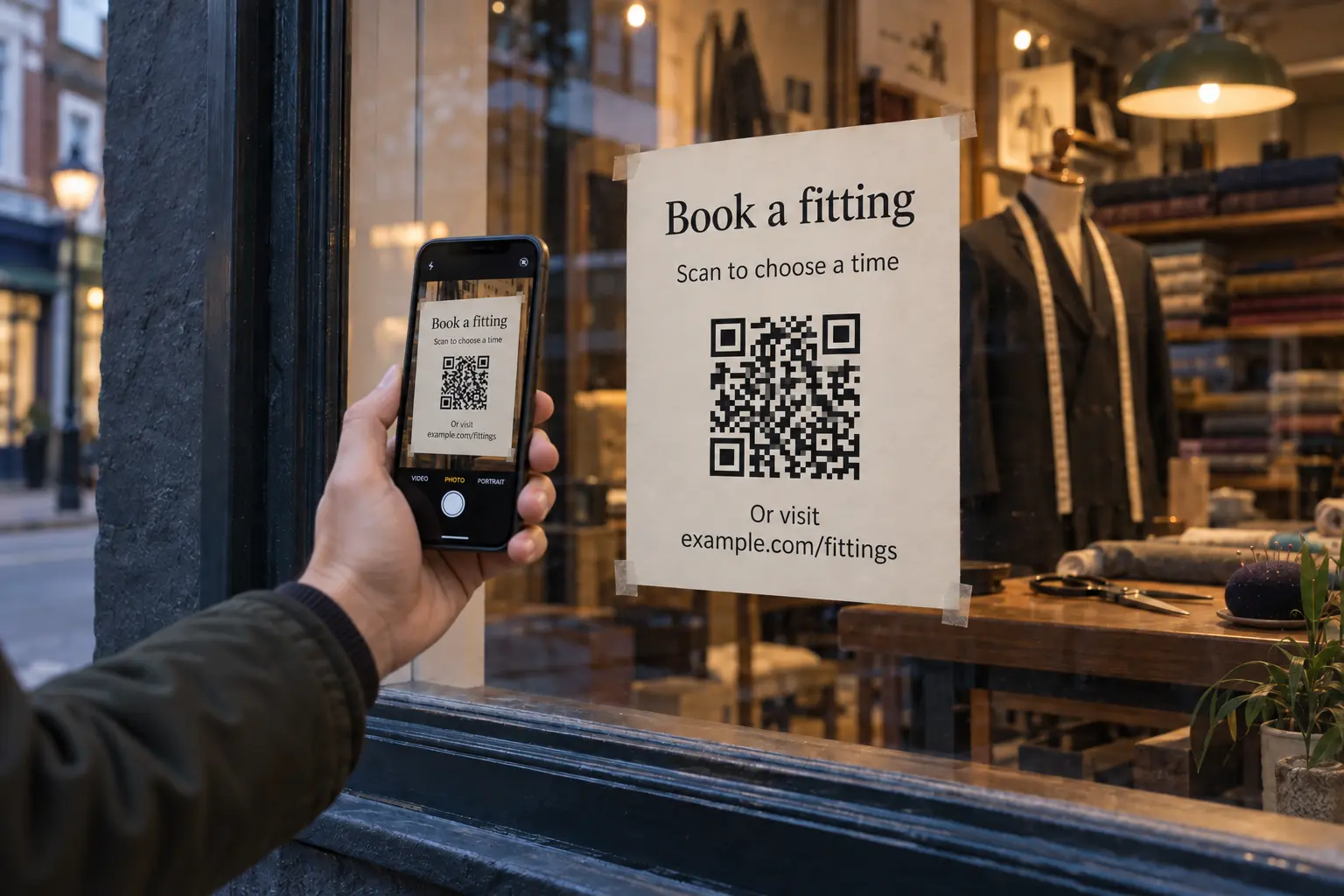
Imagine you run a tailoring shop and already take fitting appointments through an online scheduler. You’re preparing a window sign so someone who stops by after closing can choose a fitting time before they leave. They need to know which shop to visit and what kind of appointment they’re booking, with a confirmation they can refer to later.
A QR code lets them open that booking page without typing its address. You make the next step easier by putting the fitting invitation where they can use it, then checking the whole booking process from their side of the window.
Start with the public booking link from your existing scheduler. Make one printed proof and follow it all the way through confirmation before ordering the rest. A native or free static QR code can do this; a managed QR destination adds control and scan counts when those are useful to your business.
Choose the page that helps someone book the right appointment
For the tailoring-shop example, a public page for fitting appointments is a good destination if it already shows the shop address, appointment length, available times and any fee. Someone can choose a time without searching through unrelated services.
Use your own service page first when there’s more to explain. A fitting might require customers to bring their shoes, or appointments might be available at two locations. Put those details beside an obvious booking button. The extra screen serves a purpose when it helps someone arrive prepared at the right place.
Edinburgh Napier Students’ Association uses a printed appointment invitation in its 2024 welcome guide, page 12. The page includes a QR code, a readable advice-service address and a telephone number. Its current advice page explains the service and links to Microsoft Bookings.
Copy the scheduler’s public sharing URL for the chosen service. Open it while signed out of the owner account and check that customers can select a time. A calendar that only displays events needs a separate booking action. For a sign intended to stay up, choose a continuing booking page rather than a single-use invitation or a schedule that expires after one date.
Make the invitation match that page
Draft the words before placing the QR artwork. For the illustrative shop, the sign could read:
Book a fitting
Scan to choose an available time at our [location] shop.
Or visit [readable booking address].
Replace the brackets with your actual location and working address. If your process sends an appointment request for staff approval, say “Request a fitting” and explain when the customer will hear back. Use “Book” when the customer can complete a confirmed booking.
Keep required fees and preparation instructions visible before commitment. Print a readable address beside the QR code so someone can type it, save it or share it. A contact number also gives customers a way to ask about availability or arrange help with booking.
For the QR artwork, check the sharing options in your scheduler first. Zoom Scheduler’s documentation describes opening Share for a booking page, choosing QR Code, then downloading or copying the image. Scheduler access is subject to Zoom’s applicable plan and setup.
You can also use a free static QR code generator with your public booking URL or a service-page address you maintain. The QR code keeps that encoded address fixed. If you maintain the page at that address, you can update its booking button when needed. Free QR generation does not make the scheduling service free.
Export the artwork and print one proof at its intended size. Keep it square with a clear margin and strong contrast. The print-size guide helps you plan for the distance between the customer and the sign; the proof is where you check the result in its actual position.
Complete a booking proof from the customer’s side
Place the proof where customers will use it. For a window sign, stand outside and scan through the glass in the lighting they’ll encounter. Use a phone signed out of your scheduler’s owner account, and try another phone if available. Test the typed address separately, too.
Copy this booking record for your sign. Fill in each observation and any correction needed.
| Check | What to record | Your observation or correction |
|---|---|---|
| Printed promise | Exact invitation, including booking or request wording | ______ |
| First screen | Address opened and what the customer sees first | ______ |
| Service and location | Service name, duration and physical address or online meeting format | ______ |
| Available slot and time zone | A known available test time, displayed time zone and time shown in confirmation | ______ |
| Access | Whether the customer needs an account or login, and where that requirement appears | ______ |
| Information and payment | Required fields, fee or deposit, and when each is explained | ______ |
| Confirmation | Customer’s confirmation screen/message and matching entry in your scheduler | ______ |
| Reschedule or cancel | Working customer route and any relevant deadline | ______ |
| Readable fallback | Typed address and the booking page it reaches | ______ |
| Date and tester | Test date, phone/browser and person checking | ______ |
| Retest trigger | Changes that require another check, plus who will check | ______ |
Complete a test appointment only in a test calendar you control and are authorized to use. Send its messages to your own test address. If the flow requires payment, use the scheduler’s supported test mode; record any step you cannot test. Do not submit bookings to the institutional example above.
Check both sides of confirmation: the customer receives the expected appointment details, and your scheduler records the same service, location and time. A request awaiting approval should remain labeled as a request. Then use the customer cancellation route to remove your test appointment and verify that its status changes in the scheduler.
Also check what customers see when no appointments are available. They should be able to tell whether to choose a later date or contact you. The QR code opens the page; your scheduler controls the available slots.
Fix any mismatch before printing the full quantity. Retest after changing the destination, services, location, access requirements, fees or scheduler settings, and after replacing the artwork. If the phone cannot read the printed symbol, use the printed QR troubleshooting checklist.
Choose destination control and measurement for the work you do
If you want to manage the printed destination separately from your scheduler and see basic scan counts, a Graklink dynamic QR code includes destination editing, unlimited scans and basic counts. You can keep the sign useful when a service page moves and see activity without an analytics subscription. A permanent short link has an editable destination and separate click counts for the readable fallback.
For a fitting sign in the window and a handout customers take home, separate QR routes let you compare activity from those placements. Reprinting one QR code on both combines their counts. Give each distinct route a descriptive label and record where and when you use it.
Keep QR scans, typed-link clicks and appointments separate in your records. The scheduler supplies confirmed bookings and cancellations. Record attendance separately, or use your scheduler’s attendance feature if it has one. Someone may scan more than once or look at times without booking. A Graklink route does not schedule appointments, send appointment reminders or automatically import third-party bookings.
Compare activity and appointment records over matching dates. If your scheduler supports source tags, verify that it retains them through confirmation before using them to compare booking sources. Without that evidence, you can report window scans and total appointments for the same period, but cannot assign those appointments to the window sign. A scan count does not establish booking attribution by itself.
Prepare one sign before ordering the rest
Choose the public destination for one service, write the invitation and print a proof. Complete the booking record on a signed-out phone, including confirmation and cancellation in your own test calendar. Keep the record with the sign file so the next person updating it knows what to check.
When destination control and basic counts fit that invitation, use the same tested public address for the QR code. A native or static QR option still uses the same proof process.

Common questions
How do I make a QR code for appointment booking?
Copy the public sharing URL for your existing booking page. Use your scheduler's QR download if available, or generate a QR code for that address. Add a service-specific invitation and readable booking address, then test the printed proof on a signed-out phone through confirmation.
Can I use a free QR code for appointments?
Yes. A free static QR code can open an existing booking page or a service page you maintain. Some schedulers also provide their own QR download. The scheduling service may have separate charges. A static QR code keeps the encoded address fixed and does not provide Graklink scan counts.
Should the QR code open my calendar or my website?
Use the public booking page when it already explains the service, location and relevant terms. Use a service page with a clear booking button when customers need that information before choosing an appointment. A view-only calendar does not provide a booking workflow.
Does a QR scan count as a booked appointment?
No. A scan records activity on the QR route. Your scheduler records confirmed appointments. Repeated scans, cancellations and attendance make these different measures; Graklink does not automatically import bookings from a third-party scheduler.
Do I need a separate QR code for every printed sign?
No. Copies of one QR code use the same route and share its scan count. Create separate QR codes when destinations differ or when you want separate activity counts for placements, services or locations.
Sources and verification dates
Source links, check dates and available archived copies are listed below.
- ENSA Welcome and Events Guide 2024, page 12
Checked September 29, 2026.
Printed appointment invitation with a QR code, readable advice-service address and telephone number.
Institutional publication. It does not establish completed bookings, measured results or Graklink use.
- ENSA advice service
Checked September 29, 2026.
Service information and a Book an appointment link to Microsoft Bookings.
Public page checked; no appointment submitted.
- Zoom: getting started with Zoom Scheduler
Checked September 29, 2026.
A booking page's Share window offers a QR Code tab with image download or clipboard copy.
Scheduler access and available features depend on the provider's applicable plan and setup.